Part I - The raspberry
Part II - An image is worth a thousand megabytes
Part III - A post-morten
A lot has happened since my first rπ post. I've used that little thing to death (quite literally), as a ssh box, firewall, general server, web server, web browser, movie box and a whole lot more. Then, I've had the SD card die on me. For me, it was a perfect little linux computer that could stay on all the time, consuming little-to-no power, making absolutely no noise, occupying minimal space. In a few words: really, really awesome. And all that for 35 dollars!
As promised, I'll post here the steps to get from a rπ on a closed box to a little box of awesomeness. I know there a ton of posts like these, but hey, storage is free (for now) on blogger. If you haven't read the first post, this is a good time to do it. I will first make a few post-morten (again, literally) observations about my first assumptions.
SD card: let's start with the most important thing. When I first went shopping for the various attachments, I got the most inexpensive card I found. The only requisite was that it had at least a 4gb storage. After it died, I decided to spend a few extra bucks and get a decent one. Man, I was surprised. There isn't any way of comparison between the π before and now. Instead of moaning the old days, I'll just say this: get a decent, class 10 SD card and you'll have nothing to worry about. And since these things get cheaper and cheaper, get a 16gb one.
Power supply: again, when I started using the π, I just used my cell phone charger, which, by extreme luck, was compatible and provided almost exactly the amount of power needed. Then I started using a wireless adapter sometimes. Then I started using hdmi output sometimes. Then I tried to use both at the same time. And it died. Not that it does any harm to the board, but any moderate load will simply power-off the device. So, if you want to use more than the π itself, get an appropriate power supply. Those on the farnell website worked just fine for me. And just for completeness sake, mine is 1000mA.
HDMI: I did my first tests on my living room TV. But after a while (as addiction got worse), I felt the need to use it on my bedroom, where I have only an old computer monitor with VGA input. So I got a VGA-to-HDMI adapter and things worked fine (well, almost, more on that later).
OS: the first distribution I installed was raspbian, mainly because I was used to debian and, by the time I started playing, there weren't many alternatives. Now we have pidora and even riscos. But anyway, raspbian is a really good distribution and I never had a problem with it. But I am restless. Since I was going to reinstall the OS from /dev/zero, I decided to jump from the cliff and install arch. For no special reason, just to try something else. So, the instructions from now on will be arch centered, although many will be usable on other distributions.
Man, I write a lot. Let's stop right here and I'll get to the first installation steps later.
Showing posts with label raspbian. Show all posts
Showing posts with label raspbian. Show all posts
Sunday, July 14, 2013

Wednesday, February 6, 2013
An image is worth a thousand megabytes
Now we have all the components we need to run our Raspberry Pi, we can start preparing them to actually work together. The first thing we need to do is get the boot record, partitions and operating system on the SD card, so our little friend can boot and run a true system. Thankfully, some nice folks have already done the hard work, so we can jump many of the complex steps.
Part I - The raspberry
Part II - An image is worth a thousand megabytes
Part III - A post-mortem
I'm going to use the Raspbian distribution, which is based on the famous Debian (GNU/)Linux distribution, and includes many of the standard software packages already prepared to run on the Pi. If you haven't already, grab Raspbian's image, which you can find on Raspberry Pi Foundation's downloads web page.
A really important note here: you need to get the correct device name. We are going to use a program that does raw block copying, which can destroy your data if you target the wrong device. The device mounted on root ('/') is probably not the device you want, for example.
Another important thing: if the card already has partitions, some extra device files may appear, such as /dev/sdb1, /dev/sdb2 and so on. We need the device, not any partition, so be sure to use the device file with no number suffix. When you have the device name, make sure the device is unmounted so we can write data to it:


I know I promised we'd get it to work! Well, if you (unlike me) think this isn't actual work, check the next posts, where we will put the Pi to good use.
Part I - The raspberry
Part II - An image is worth a thousand megabytes
Part III - A post-mortem
I'm going to use the Raspbian distribution, which is based on the famous Debian (GNU/)Linux distribution, and includes many of the standard software packages already prepared to run on the Pi. If you haven't already, grab Raspbian's image, which you can find on Raspberry Pi Foundation's downloads web page.
$ wget http://downloads.raspberrypi.org/images/raspbian/2012-12-16-wheezy-raspbian/2012-12-16-wheezy-raspbian.zipNote that this is the current version as I write this post. Visit the page to get the most recent version. An optional but recommended step after you download the image is to check its SHA-1 checksum. That will ensure nothing has been corrupted during the download, which is always a good thing to know, specially when dealing with sensitive data such as disk images. To do that, you can use the sha1sum program:
$ sha1sum 2012-12-16-wheezy-raspbian.zipCompare the output with the hash on the SHA-1 section of the download page. Or, if you have the SHA-1 stored in a file:
514974a5fcbbbea02151d79a715741c2159d4b0a 2012-12-16-wheezy-raspbian.zip
$ sha1sum -c 2012-12-16-wheezy-raspbian.zip.sha1 2012-12-16-wheezy-raspbian.zip: OKIf you don't get the appropriate result, just download the file again and check it, until you get it right. Now we are going to copy the image to the SD card. Before you insert the SD card on your computer (you may need an external SD card reader, depending on the ports available on your machine), execute the command
$ ls /dev/sd*That will list all the disks available. If you prefer a more friendly output, you can use
/dev/sda /dev/sda2 /dev/sda4 /dev/sda6 /dev/sda8
/dev/sda1 /dev/sda3 /dev/sda5 /dev/sda7
$ df -hThis will list the devices used by the mounted filesystems. Now you can insert the SD card and run the command again. You will notice that new entries will appear on the output. It will usually be /dev/sdb* entries, if you have only one disk. That is the device file for the card. If the card is automatically mounted, you can see the size on df's output, so you can be sure that it is the right device.
Filesystem Size Used Avail Use% Mounted on
/dev/sda6 46G 30G 14G 69% /
udev 2.9G 4.0K 2.9G 1% /dev
tmpfs 1.2G 1.1M 1.2G 1% /run
none 5.0M 0 5.0M 0% /run/lock
none 2.9G 76K 2.9G 1% /run/shm
/dev/sda4 107G 50G 53G 49% /mnt/data
A really important note here: you need to get the correct device name. We are going to use a program that does raw block copying, which can destroy your data if you target the wrong device. The device mounted on root ('/') is probably not the device you want, for example.
Another important thing: if the card already has partitions, some extra device files may appear, such as /dev/sdb1, /dev/sdb2 and so on. We need the device, not any partition, so be sure to use the device file with no number suffix. When you have the device name, make sure the device is unmounted so we can write data to it:
$ umount /dev/sdb*Then use good old dd to copy the image:
$ dd if=./2012-12-16-wheezy-raspbian.zip of=/dev/sdb bs=4MA couple things deserve mention. It is always good to check (and re-check) the parameters, to make sure the image is the if (input file) value and the device is the of (output file) parameter. The bs parameter stands for block size, and is the size of each chunk of data copied at a time. Larger values make the process faster. Usually, 4mb is a reasonable Following UNIX's philosophy, dd doesn't output anything while it is working. Since it can take quite some time to finish, you may think it's froze. But don't worry, it hasn't. If you want to be absolutely sure, send the program a signal and it will output the progress:
$ ps aux | grep ddWhen it is done, run
4821 pts/2 R+ 0:33 dd if=./2012-12-16-wheezy-raspbian.zip of=/dev/sdb bs=4M
$ kill -USR1 4821
$ syncto make sure everything is properly written and remove the card. Now insert the card on the Raspberry, plug the power supply and, if everything worked, you will get a nice show of lights as it boots. You can plug the HDMI to a monitor and see the boot messages. Here's a (somewhat light-impaired) gallery:
$


Wednesday, January 23, 2013
The raspberry
Part I - The raspberry
Part II - An image is worth a thousand megabytes
Part III - A post-mortem
My late Christmas gift (from me to myself) arrived on Monday, and it is a little Raspberry Pi. If you're not familiar with it (and you should be), it's a tiny board which contains everything a computer needs to run (or, as I explained to my perplexed mother, "it has everything a computer need to be a computer").
I won't go over the process of acquiring one, which is not as simple as it may seem, if you live in Brazil. I'll skip to the part just after you console yourself for paying the rough equivalent of 85 dollars, or 242% the original price (of course this includes shipping, but it still is absurd).
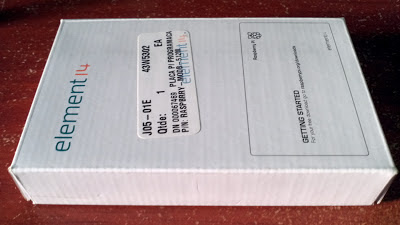
So, if you survive that step, you'll get this pretty box:
And inside it...

Prelude
If you're reading this before actually buying it, or before it arrives (and that is a smart thing to do), you'll probably want to get everything prepared so you can start working as soon as you get your hands on it. Here are the things you absolutely need to get started:


Part II - An image is worth a thousand megabytes
Part III - A post-mortem
My late Christmas gift (from me to myself) arrived on Monday, and it is a little Raspberry Pi. If you're not familiar with it (and you should be), it's a tiny board which contains everything a computer needs to run (or, as I explained to my perplexed mother, "it has everything a computer need to be a computer").
I won't go over the process of acquiring one, which is not as simple as it may seem, if you live in Brazil. I'll skip to the part just after you console yourself for paying the rough equivalent of 85 dollars, or 242% the original price (of course this includes shipping, but it still is absurd).
So, if you survive that step, you'll get this pretty box:

And inside it...

Prelude
If you're reading this before actually buying it, or before it arrives (and that is a smart thing to do), you'll probably want to get everything prepared so you can start working as soon as you get your hands on it. Here are the things you absolutely need to get started:

- SD card: this is where all the files are stored. If you'll be using Raspbian (and if you don't know what that is, it probably is what you'll be using), the card must be at least 2GB large. The size really depends on what you plan to do with it, but 8 GB and 16 GB suit most of the needs. If you don't want to buy it right away, you can use any SD card you have laying around, like those used in cameras.


- Power supply: this is the most delicate component. If you look at the Quick Start Guide, the Pi requires a "[...] good quality, micro USB power supply that can provide at least 700mA at 5V.". Depending on where you live, this may be easier or harder to find (apparently, I live in the hardest place on Earth). Remember to get the voltage right, but what's important is that 700mA is the minimum required for the Raspberry. If you want to plug other devices that need power supply to it, you're probably going to need more power. I was really lucky that my Motorola cell phone charger meets almost exactly the requirements (check the picture on the right).


- HDMI (or RCA) cable: in order to plug it to a monitor or TV, you'll need a HDMI cable. These can be found on any decent electronics store. Alternatively, you can use the RCA port to connect to older devices.


- USB keyboard: any keyboard with a USB cable will do. A mouse is not strictly necessary, but if you like, you can use any one with a USB cable.
Subscribe to:
Posts (Atom)